

Transactions Page
The Transactions page lists every invoice, order and refund transaction in a dispensary, newest first. Use it to find a transaction again, to see which ones still have a balance owing, and, in an order management dispensary, to see which step each order is at.
The Dispensary explains the three kinds of transactions.
Opening the Transactions Page
- Click the purple menu icon at the top left of any page to open the Main Navigation menu.
- Click Dispensary, then click the name of your dispensary.
The dispensary opens on the Transactions page. When you are on another page of the dispensary, click Transactions at the left end of the menu along the top of the dispensary.
The page has two parts: the green filter box at the top, and the Transaction List below it.
The Transaction List
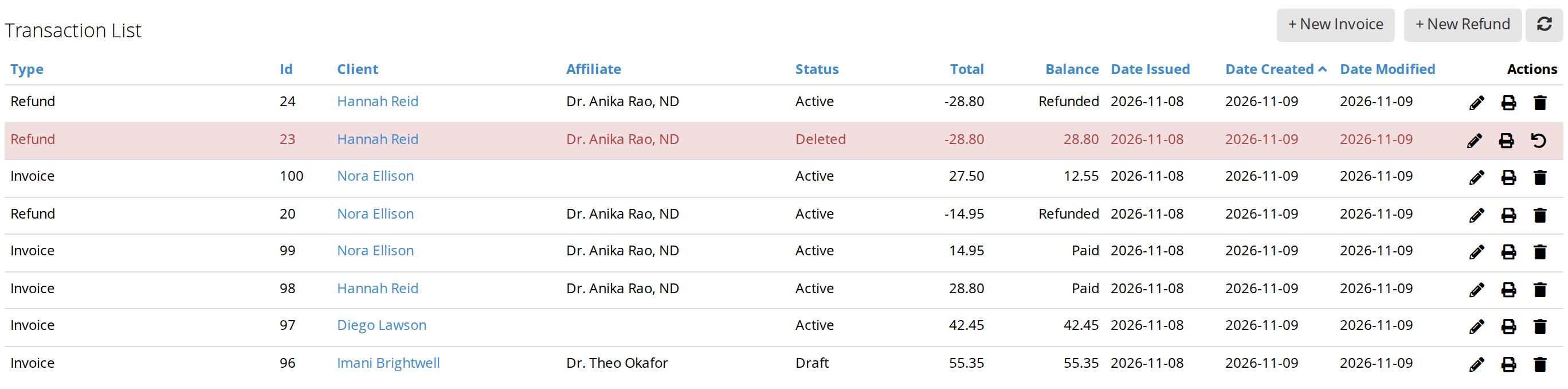
The Transaction List of a regular dispensary. A deleted transaction is shown in red, with a Restore button in place of Delete.
Each row is one transaction. The list shows 20 rows at a time. Use the page numbers below the list to see more, or click Show 50, Show 100 or Show All at the bottom right.
| Column | What it shows |
|---|---|
| Type | Invoice or Refund. Orders are listed as invoices, because an order is an invoice that goes through steps. |
| Id | The transaction’s number. Invoices and refunds are numbered separately, so an invoice and a refund can have the same number. |
| Client | The client the transaction is for. Click the name to open the patient’s record in a new tab. |
| Affiliate | The practitioner on the transaction. It is empty when no practitioner was chosen. |
| Status | Active for a transaction in use, Draft for one saved as a draft, or Deleted. |
| Total | The transaction’s total. A refund’s total is shown with a minus sign, because it is money going back to the client. |
| Balance | For an invoice, the amount still owing, or Paid once it is paid in full, or No Charge when its total is zero. For a refund, the amount still to be given back, or Refunded once it is given. |
| Date Issued | The date on the transaction. |
| Date Created and Date Modified | The day the transaction was made, and the day it was last changed. |
| Actions | The buttons for opening, printing and deleting the transaction, explained below. |
To sort the list, click a column’s heading. Click it again to sort the other way. The list starts sorted by Date Created, newest first.
To load the list again, for example after someone else has saved a transaction, click the Refresh button at the top right of the list.
The buttons at the end of each row
| Button | What it does |
|---|---|
| Pencil (Edit) | Opens the transaction in the invoice or refund screen, in a new window, where you can change it. |
| Printer (Print) | Opens the transaction’s printout in a new window. You can print it or email it from there. |
| Trash can (Delete) | Deletes the transaction straight away. |
| Curved arrow (Restore) | Shown in place of Delete on a deleted transaction. Brings the transaction back. |
Hover over a button to see its name.
Starting an Invoice or a Refund From This Page
In a regular dispensary, the + New Invoice and + New Refund buttons at the top right of the list open a blank invoice or refund in a new window.
You can also start them from the Daily Express Checkout card on your dashboard, which is the usual place. Creating an Invoice and Creating Refunds and Store Credit explain each one.
In an order management dispensary, these two buttons are not shown. Start invoices and orders from the Daily Express Checkout card, and refunds with the Refund button at the bottom of the invoice or order.
In an Order Management Dispensary
The list of an order management dispensary has one more column, Fulfillment, which shows the step each order is at. The buttons at the end of an order’s row also change with its step, and take you to the right place for that step.
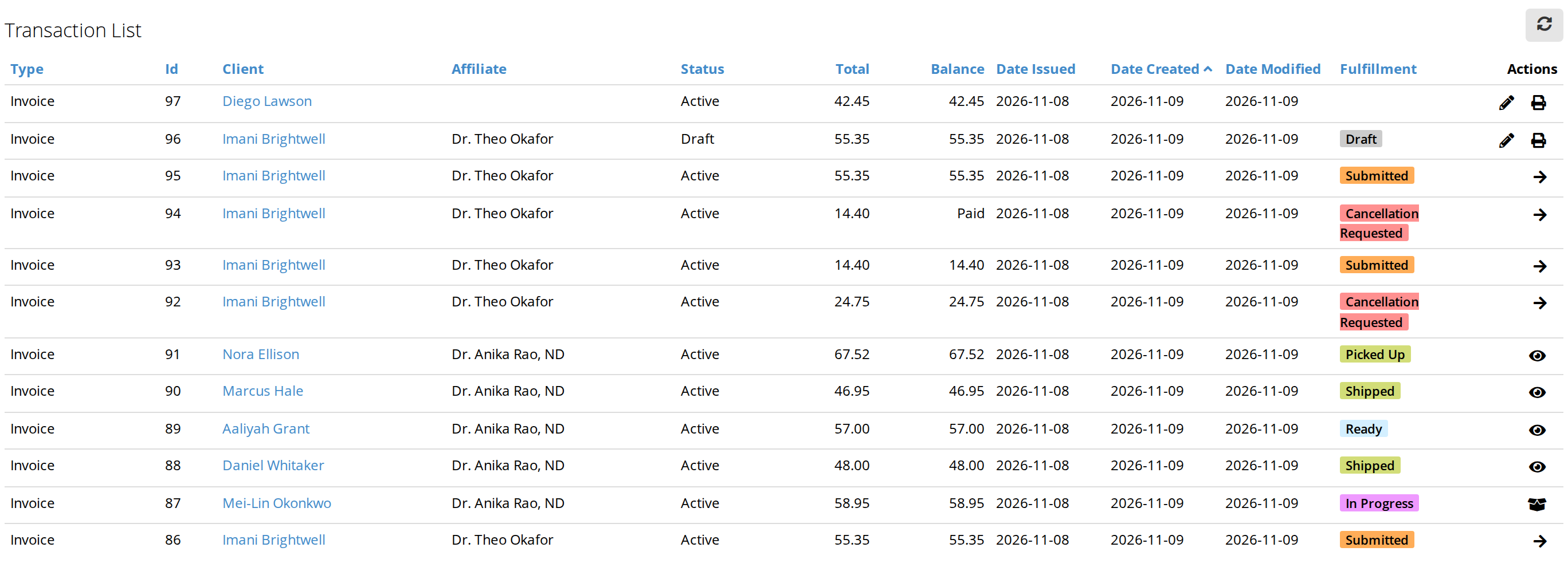
The Transaction List of an order management dispensary. The Fulfillment column shows each order's step, and the button at the end of the row opens the order in the right place for that step.
The Fulfillment column
| Label | What it means |
|---|---|
| Draft | The practitioner saved the order but has not submitted it yet. |
| Submitted | The order was submitted and is waiting for the dispensary staff to begin fulfillment. |
| In Progress | The dispensary staff are packing the order. |
| Ready | The order is packed and ready to ship or to be picked up. |
| Shipped or Picked Up | The order has left the dispensary. |
| Cancellation Requested | The practitioner asked to cancel the order, and the dispensary staff have not approved or declined it yet. |
| Cancelled | The order was cancelled. |
An invoice that was never made into an order has no label in this column.
Orders explains each step.
The buttons on an order’s row
| Button | Shown for | What it does |
|---|---|---|
| Arrow (Review Order) | Submitted orders, and orders with a cancellation requested | Opens the order in the invoice screen, where you can check it and begin fulfillment, or approve or decline the cancellation. |
| Box (Continue Packing) | Orders in progress | Opens the order’s packing screen, where you check off each product as you pack it. |
| Eye (View Order) | Orders that are ready, shipped or picked up | Opens the order’s printout, with its step bar and the Ready step. |
Invoices and draft orders have the usual Edit and Print buttons.
Filtering the List
The green box at the top of the page narrows the list. Fill in one or more filters, and the list changes as you do. Clear a filter, or set it back to Any, to stop using it.
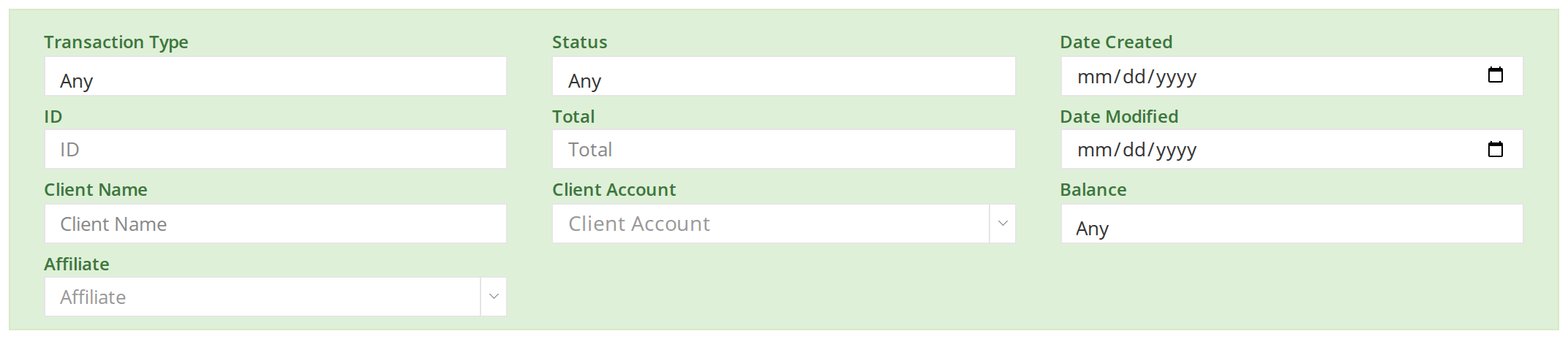
The filters at the top of the Transactions page. Fill in one or more to narrow the list.
| Filter | What it finds |
|---|---|
| Transaction Type | Invoices Only or Refund Only. Orders are included in Invoices Only. |
| ID | The transaction with this number. |
| Client Name | Transactions for clients whose first name or last name contains what you type. Type one name at a time, for example Ellison. |
| Client Account | Transactions for the client you choose from the list. |
| Affiliate | Transactions with the practitioner you choose. |
| Status | Active Transactions, Deleted Transactions or Draft Transactions. |
| Total | Transactions with exactly this total, such as 42.45. Put > or < in front to find larger or smaller totals, for example >100 for every total over 100, or <=20 for every total of 20 or less. |
| Balance | No Charge, Unpaid, Overpaid or Paid. |
| Date Created and Date Modified | Transactions made, or last changed, on the day you choose. |
Examples
- To see every invoice that still has a balance owing, choose Invoices Only in Transaction Type and Unpaid in Balance.
- To find everything for one client, choose the client in Client Account.
- To find a transaction you deleted, choose Deleted Transactions in Status.
- To find large sales, type >200 in Total.
Deleting and Restoring a Transaction
In a regular dispensary, you can delete an invoice or a refund from the list.
- Find the transaction in the list.
- Click the trash can button at the end of its row.
The transaction is deleted straight away, without a window asking you to confirm. It turns red, its Status changes to Deleted, and it no longer counts in your sales or stock.
To bring it back, click the curved arrow (Restore) button at the end of its row. When the list shows only active transactions, choose Deleted Transactions in the Status filter first to find it.
An invoice the client paid for by card through OutSmart Pay cannot be deleted, because the money has to go back to the card. A message at the top right of the page says why. To give the money back, open the invoice and create a refund transaction with the Refund button. Creating Refunds and Store Credit explains how.
Troubleshooting
I cannot find a transaction
Check the green filter box, and clear any filter you are not using. Then search by ID or Client Name. If the transaction was deleted, choose Deleted Transactions in Status.
The + New Invoice and + New Refund buttons are missing
Your dispensary is an order management dispensary. Start invoices and orders from the Daily Express Checkout card, and refunds with the Refund button at the bottom of the invoice or order.
I deleted a transaction by mistake
Choose Deleted Transactions in the Status filter, find the transaction, and click the curved arrow (Restore) button at the end of its row.
Related Pages
- The Dispensary: invoice, order and refund transactions, and the two kinds of dispensary.
- Managing Existing Invoices: changing and deleting an invoice.
- Orders: the steps an order goes through.
- Creating Refunds and Store Credit: refund transactions.
- Sales Reports: totals of your sales over a period.