

Copying A Patient's Details
When you need a patient’s name, address, phone number or health card number somewhere outside OutSmart, the patient card can put all of it on the clipboard in one click. You then paste it into whatever you are filling in, such as a lab requisition, an insurance form, a referral in another system, or an email.
Copy Settings is where you decide which details that button copies, and how they are arranged. You set it once and it is used every time afterwards.
The Copy Button
Open a patient’s workspace. The patient card is the card at the top left, with the patient’s photo, name and contact details on it.
Three small buttons sit in the top right corner of that card. The first one, which looks like two sheets of paper, is the copy button. Hovering over it shows the words Copy patient details.
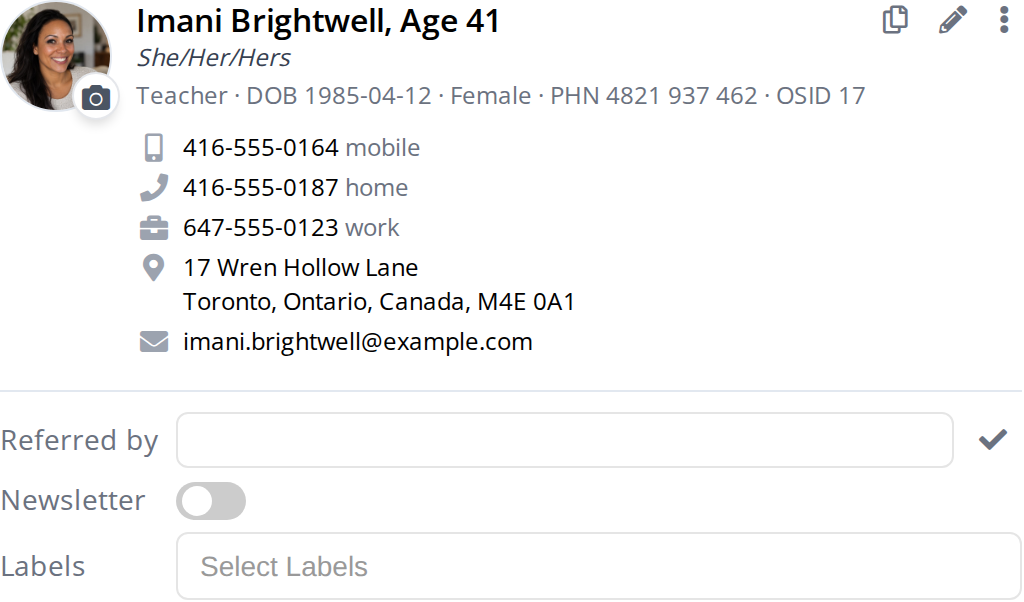
The three buttons in the top right corner of the patient card. The first one copies the patient's details, the pencil opens the details for editing, and the three dots open the More actions menu.
Click the copy button once and the patient’s details are on your clipboard as plain text. Paste them wherever you need them, using Ctrl and V on Windows, or Command and V on a Mac.
The button turns into a green tick for a moment so you can see that it worked.

The green tick appears for about a second and a half after a successful copy, then the button goes back to normal.
The details are copied as plain text with no formatting, so they paste cleanly into a form, a spreadsheet cell, an email or a word processor without bringing any colours, fonts or boxes with them.
What Gets Copied Until You Change It
Until you choose your own layout, the copy button copies the patient’s name, address, three phone numbers and email address, like this:
Imani Brightwell17 Wren Hollow LaneToronto, Ontario, Canada, M4E 0A1Mobile: 416-555-0164Home: 416-555-0187Work: 647-555-0123imani.brightwell@example.comThe date of birth and the health card number are not included in that list. If you want them, add them yourself in Copy Settings, which is what the rest of this article explains.
Opening Copy Settings
The third button in the top right corner of the patient card is three dots stacked vertically. Hovering over it shows the words More actions. Click it and a short menu drops down.
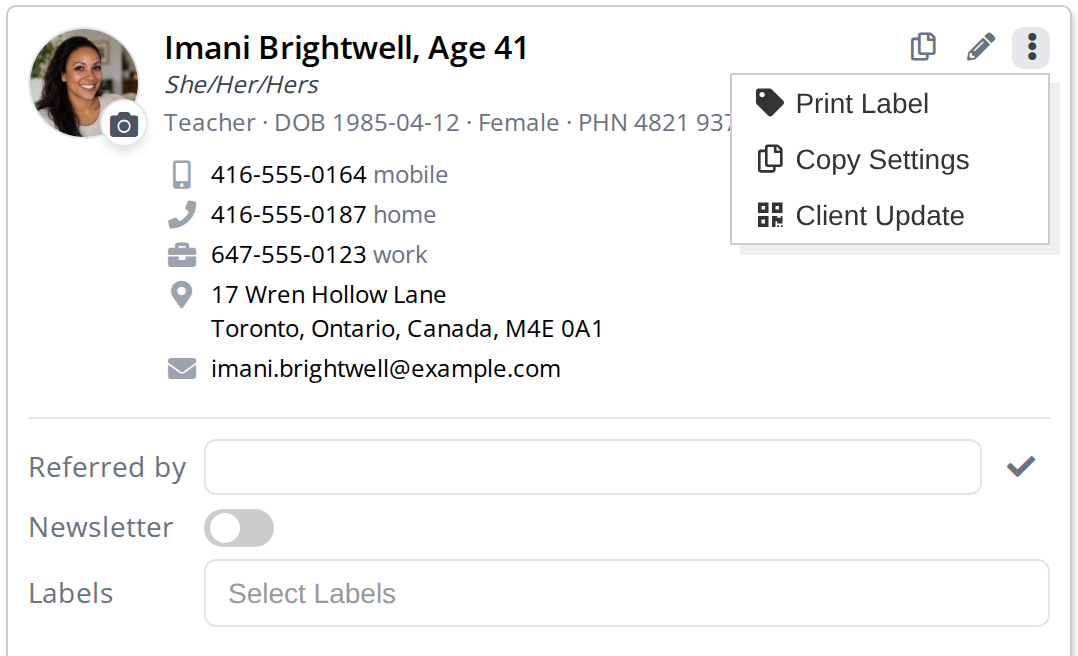
The three dots button opens the More actions menu. Copy Settings is the second item.
Click Copy Settings. A window opens where you build the layout the copy button will use.
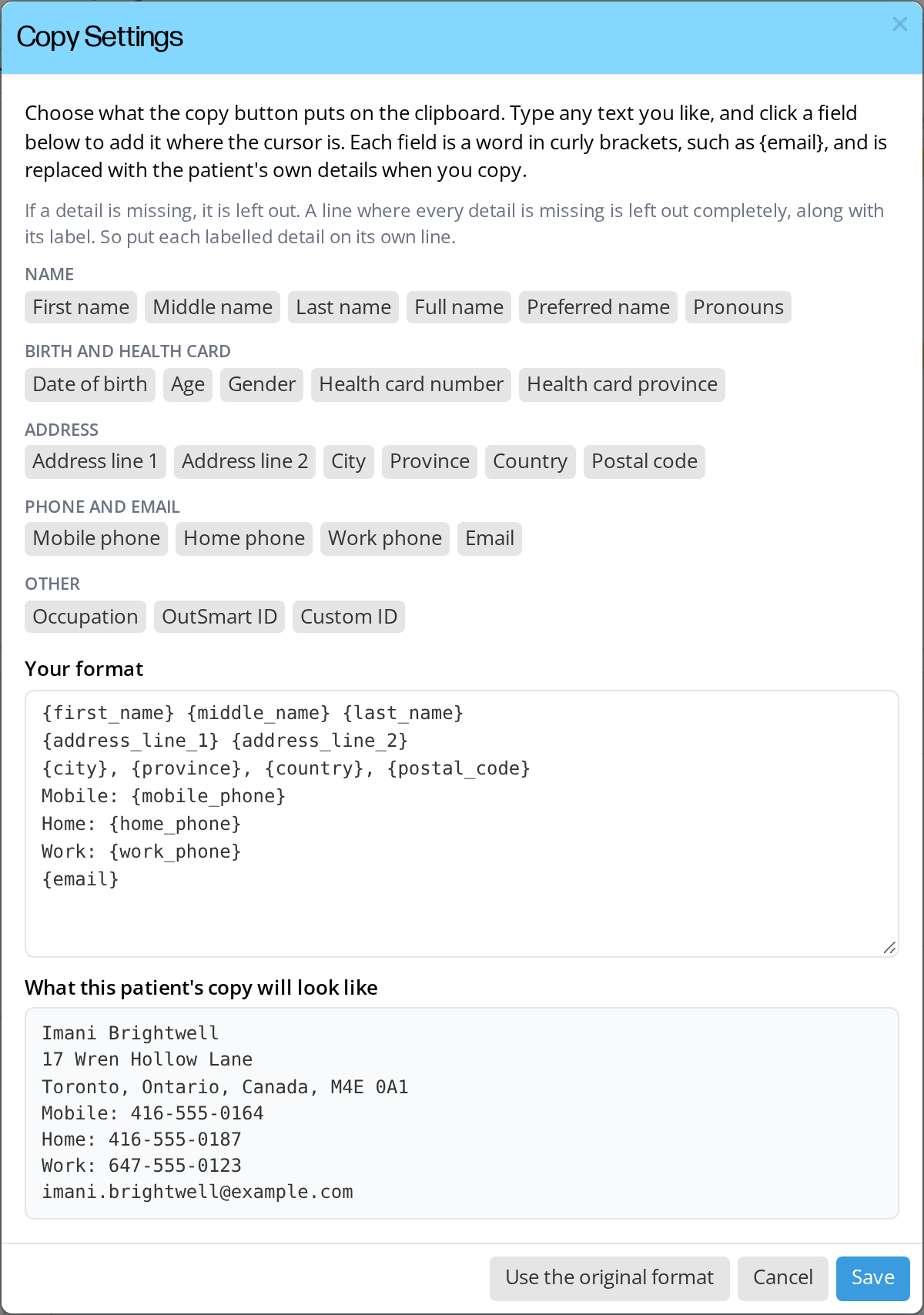
The Copy Settings window. The grey buttons are the details you can include, the box under Your format holds the layout, and the box beneath it shows what the copy will look like for the patient whose workspace is open.
Building Your Layout
The box under the heading Your format holds the layout. It starts off with whatever you are using now, which is the standard layout until you save something of your own.
You can type anything you like in that box. A word in curly brackets, such as {email}, is a detail from the patient’s record, and it is swapped for that patient’s own email address when you copy. Everything else in the box is copied exactly as you typed it, so you can add your own labels, such as Health card: in front of {health_card_number}.
To add a detail, click in the box where you want it, then click one of the grey buttons above. The detail is put in at that point. You can also type the curly brackets yourself if you prefer.
The box under What this patient’s copy will look like fills in as you type, using the details of the patient whose workspace you have open. It shows you the finished result before you save anything.
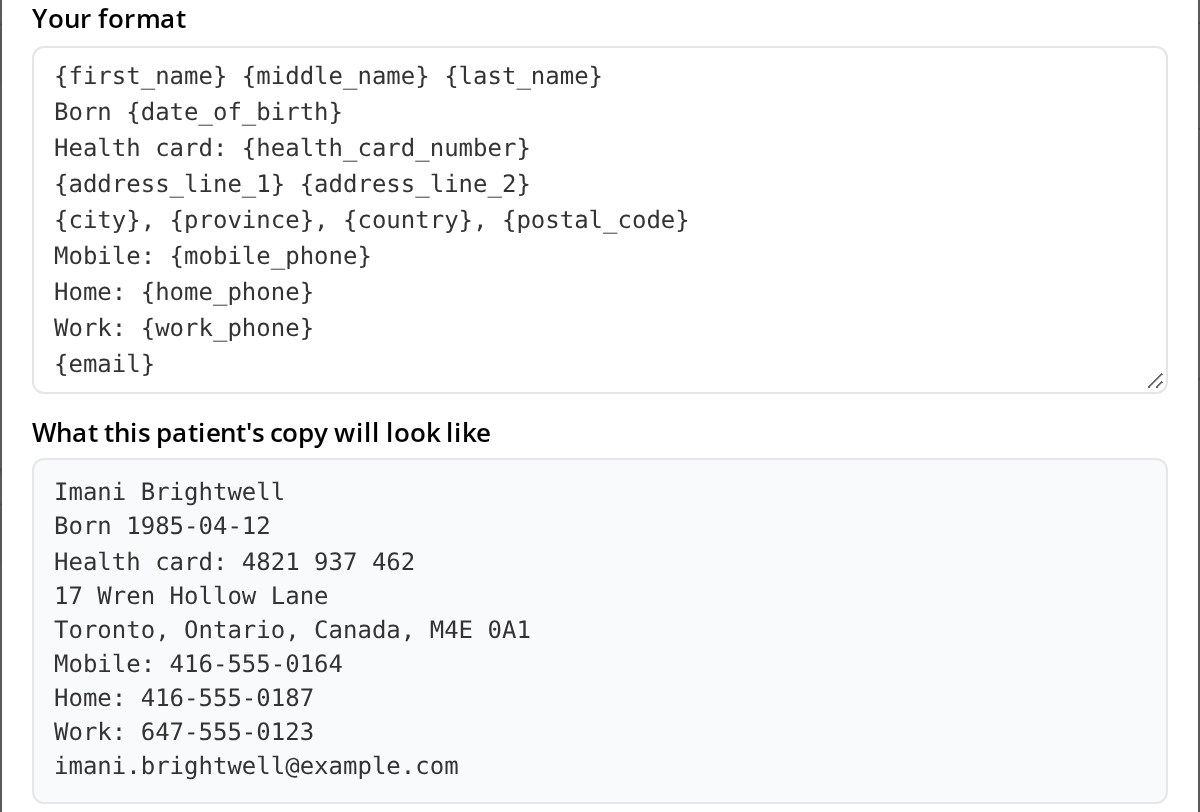
Two lines have been added to the layout, one for the date of birth and one for the health card number. The preview underneath shows them filled in with the open patient's details.
The Details You Can Include
| Group | Details |
|---|---|
| Name | First name, Middle name, Last name, Full name, Preferred name, Pronouns |
| Birth and health card | Date of birth, Age, Gender, Health card number, Health card province |
| Address | Address line 1, Address line 2, City, Province, Country, Postal code |
| Phone and email | Mobile phone, Home phone, Work phone, Email |
| Other | Occupation, OutSmart ID, Custom ID |
Full name puts the first, middle and last name together on one line. Age is worked out from the date of birth, and is the same age the patient card shows. OutSmart ID is the patient’s OSID, and Custom ID is the identifier your clinic gives the patient, if you use one.
When A Patient Is Missing A Detail
Not every patient has every detail on file, so the copy leaves out what is not there.
A detail that is empty is taken out along with the comma or the spaces beside it. If a patient has no province recorded, a line reading {city}, {province}, {country} copies as Toronto, Canada, with no gap and no stray comma.
A line where every detail is empty is left out completely, and its label goes with it. If a patient has no mobile number, the line Mobile: {mobile_phone} does not appear in the copy at all, so you never paste a label with nothing after it.
Saving, And Starting Again
Three buttons sit at the bottom of the Copy Settings window.
- Save keeps your layout and closes the window. The copy button uses it from then on, on every patient.
- Cancel closes the window and throws away your changes.
- Use the original format puts the standard layout back in the box so you can start again. It does not save anything on its own, so click Save afterwards if you want to keep it.
The window stays open if you press Escape, or if you click the page behind it. This is deliberate, because it is easy to drag outside the box while selecting text, and losing a layout you had just written would be worse than having to close the window yourself. Use Cancel, or the X in the corner, when you want it gone.
Your Layout Is Yours
The layout you save belongs to your own sign-in. Nobody else at the clinic sees it, and your colleagues carry on with whatever they have chosen for themselves. Everyone starts on the standard layout until they change it.
Your layout follows you from patient to patient and stays set after you sign out and back in, so you only build it once.
Related Pages
- Client Update: Patients Check Their Own Details. Hand a patient a tablet so they can check and correct their own details.